Yes, Claude Code can strip the sponsored rows off your smart TV home screen. Two open-source projects do it, and both work. What the viral clips skip is step one: switching on a debug mode that, on Android TVs, opens an unencrypted door on your Wi-Fi. Here's AI Lab Australia's read, and when we'd say yes.
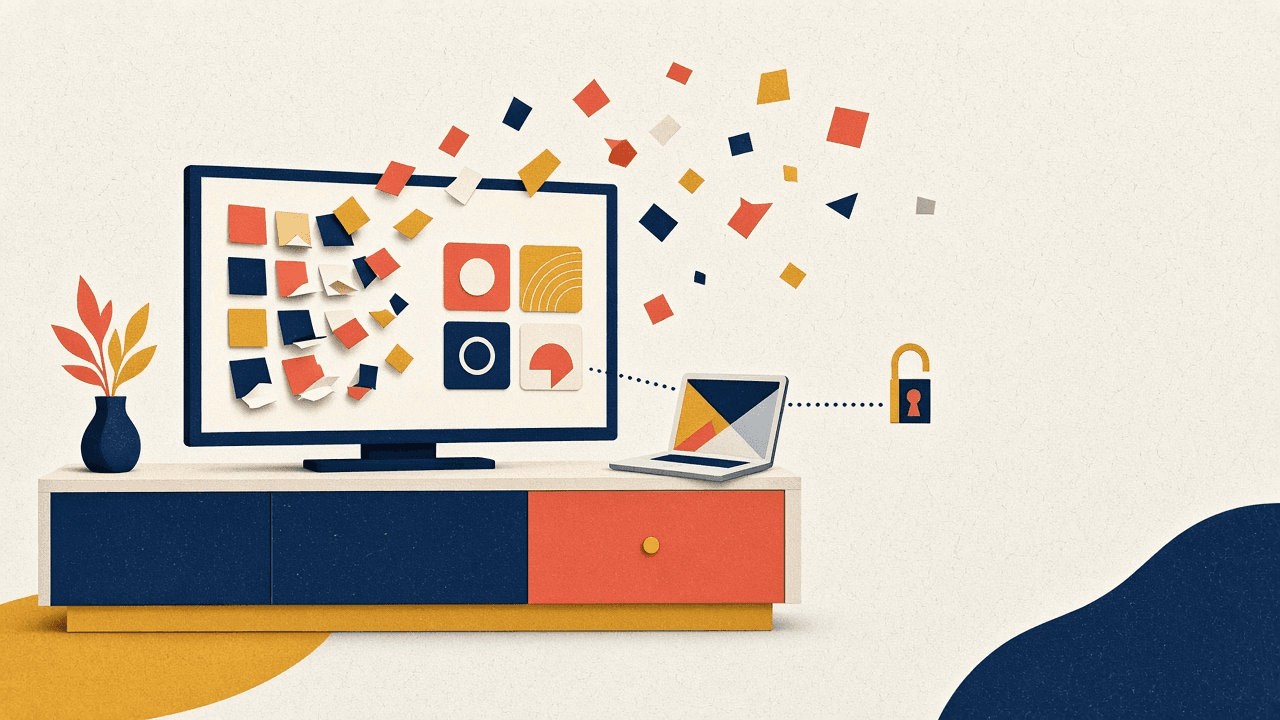
Yes, Claude Code can strip the sponsored rows off your smart TV home screen. Two open-source projects do it, and both work. What the viral clips skip is step one: switching on a debug mode that, on Android TVs, opens an unencrypted door on your Wi-Fi. Here's AI Lab Australia's read, and when we'd say yes.
You've probably seen the before-and-after. A cluttered TV home screen full of "recommended for you" tiles and sponsored rows. Then a laptop, a coding assistant, a few minutes, and a clean grid of the apps you actually use.
One creator's version, posted on TikTok on 28 October (Sydney time), stitched someone else's clip of the trend, ran his own test, and called it "100% fact". He's right. It works.
We went through the two projects the video points to, read their READMEs and the main project's safety page, and asked the question we ask about every tool we look at: would we put this in front of a client?
Short answer: at home, yes. In your office, not yet. Here's why.
CleanYourTV is the big one. The repository was created on 17 October 2026 and had more than 43,000 stars on GitHub by 29 October. That's a lot of people in under a fortnight.
It debloats Android TV and Google TV sets over Wi-Fi. You don't run it like normal software. You point a coding assistant at it (Claude Code, OpenAI's Codex or Gemini CLI), and the assistant connects to your TV across the network and works through the clean-up.
The detail we liked: it doesn't delete anything. It switches packages off with the Android command pm disable-user, which leaves the app on the TV but stops it running. Nothing is uninstalled, and the project ships a restore so you can put everything back.
That's the right design. Disabling is reversible. Uninstalling system apps on a TV you don't fully understand is how you end up ringing the retailer.
What it won't do is just as clear. According to its own site, CleanYourTV does not work on Samsung Tizen, LG webOS or Fire TV. If you've got one of those, version 3.1 (released 27 October, see the releases page) adds a privacy guide you follow with the remote alone. No laptop, no AI, no debug mode. It's a settings walkthrough, not a debloat.
The second project in the video is Free My TV. It takes another route. Instead of switching things off, it gives you a new home screen: an open-source, ad-free launcher for Google TV, LG webOS and Samsung Tizen.
Its maker says it was built with Claude Code, and it has a one-button undo.
The important nuance is on LG and Samsung. There it installs as an app through the TV's Developer Mode, and the maker's own home screen stays put. So you're not replacing LG's or Samsung's interface. You're adding a cleaner one you open instead. That's less dramatic than the before-and-after clips suggest, but it's also less invasive.
The fine print from the README:
A third-party install guide on dev.to also notes that on Android 14, Google Play Protect may flag the app as "Risky app blocked". That's a secondary source, so treat it as "might happen", not "will".
Every one of these paths starts by switching on a developer or debug mode. The clips show the result. They don't show that step, and they don't show anyone switching it back off.
On Android and Google TVs, the switch is network debugging. CleanYourTV's own safety page is refreshingly blunt about what that means:
Credit to the project for saying it plainly. Plenty of tools would bury that.
Here's what it means in practice. While network debugging is on, your TV is listening on your Wi-Fi for commands, with no encryption on the connection. On some TVs, that listening is open to anything else on the same network: a guest's phone, a cheap smart plug, a laptop that's picked up something nasty. A shell is a command line on the TV.
At home, on your own Wi-Fi, for half an hour, that's a manageable risk. Left on for months, it isn't.
The same page notes two more limits worth knowing before you start:
We're not going to invent commands the projects don't publish. Follow each README exactly. But here's the shape of it, so you know what you're signing up for.
CleanYourTV (Android TV and Google TV only):
Step 5 is the one people skip. Don't.
Free My TV (Google TV, LG webOS, Samsung Tizen):
One thing the sources don't settle: whether you can switch Developer Mode off afterwards without affecting the app. Check the README for your TV before you assume either way.
Samsung, LG or Fire TV and no appetite for any of this? Use CleanYourTV's remote-only privacy guide from v3.1. You'll keep the ads in places, but you won't open anything on your network.
At home: yes. On your own lounge-room TV, on your own Wi-Fi, it's a reasonable Saturday job. Do it, enjoy the clean screen, then switch debugging off. The reversible design on both projects counts for a lot.
On a client's reception or boardroom TV: wait.
Here's our reasoning. A TV in reception is usually on the same network as everything else in the business, unless someone has deliberately separated it. That's our inference, not something either project says, but it matches most small offices we walk into. So the trade is this: you open a debug door on the business network, on a device nobody monitors, to get rid of some sponsored tiles that customers glance at while they wait. That's a security cost for a cosmetic win.
Then add the unknown warranty answer, and the fact that in-app ads stay anyway.
Hypothetical example: picture a 12-person accounting practice in Parramatta with a Google TV in the waiting room showing a slideshow. Someone runs CleanYourTV on a Friday afternoon, the home screen looks great, and nobody turns network debugging off. Six months later, that TV is still listening on port 5555 on the same Wi-Fi as the practice's laptops. Nothing has to go wrong for that to be a bad position. It just shouldn't be there.
If a Sydney business really wants a clean screen in reception, we'd talk about the boring options first: a network segment for screens and guests, or a display that doesn't need debloating at all. We covered why network segmentation matters in our read of the ASD Cyber Threat Report 2025–26. And if you're giving AI coding agents access to devices on your network, our list of open-source AI security tools for AI agents is worth a look.
We'd rather not end on a lecture, because this is a genuinely good use of AI coding tools.
It's a real problem. TV home screens have become billboards, and most people don't know how to fix that. The projects are open source, so you can read what the assistant will run before it runs it. CleanYourTV disables instead of deleting and ships a restore. Free My TV adds a home screen rather than tearing one out, with an undo button. And CleanYourTV's maintainers publish a safety page that tells you the risk in one line.
That's what responsible tooling looks like. Our only complaint is with how it travels on social media: the after-shot, without the off switch.
Can Claude Code really remove ads from my smart TV? From the home screen, yes. CleanYourTV does it on Android TV and Google TV by disabling packages, and Free My TV gives Google TV, LG webOS and Samsung Tizen an ad-free launcher. Neither removes ads inside apps like YouTube.
Does CleanYourTV work on Samsung or LG TVs? No. It doesn't support Samsung Tizen, LG webOS or Fire TV. Version 3.1 adds a remote-only privacy guide for those. Free My TV does support LG and Samsung, as an app installed through Developer Mode.
Is it safe to turn on network debugging on my TV? For a short session on your own home network, it's a manageable risk. The project's own safety page says network ADB on port 5555 is unencrypted, and on some firmware any device on your network gets a shell. Turn it off when you're finished.
Will it delete apps or void my warranty? CleanYourTV switches packages off rather than uninstalling them, and has a restore. Warranty impact isn't verified. The project says to check with your manufacturer and the rules in your country.
Do I need to pay for anything? Both projects are open source. You need a coding assistant such as Claude Code, Codex or Gemini CLI for CleanYourTV. Free My TV's trending picks need your own TMDB API key, and the LG path needs a free LG developer account.
Should my business do this on the office TV? We'd wait. It opens a debug door on the business network for a cosmetic result. Fix the network layout first, or leave the TV alone.
The claim holds up. A coding assistant and an open-source repo really can give you a clean TV home screen, and the better project here is built carefully: reversible, documented and upfront about its risks.
The catch is the switch you flip to get there. At home, flip it, do the job, flip it back. In a business, the maths changes, and a nicer waiting-room screen isn't worth an open port on your network.
If you're a business in Sydney or anywhere in Australia working out which AI tools are safe to let near your network, our AI consulting team can help, and our group training covers safe use of coding agents for staff. Or get in touch and email info@ailabaustralia.com. We'll tell you straight whether it's worth doing.
Get expert guidance on implementing ai tools solutions for your Australian business